
Image tools in one place
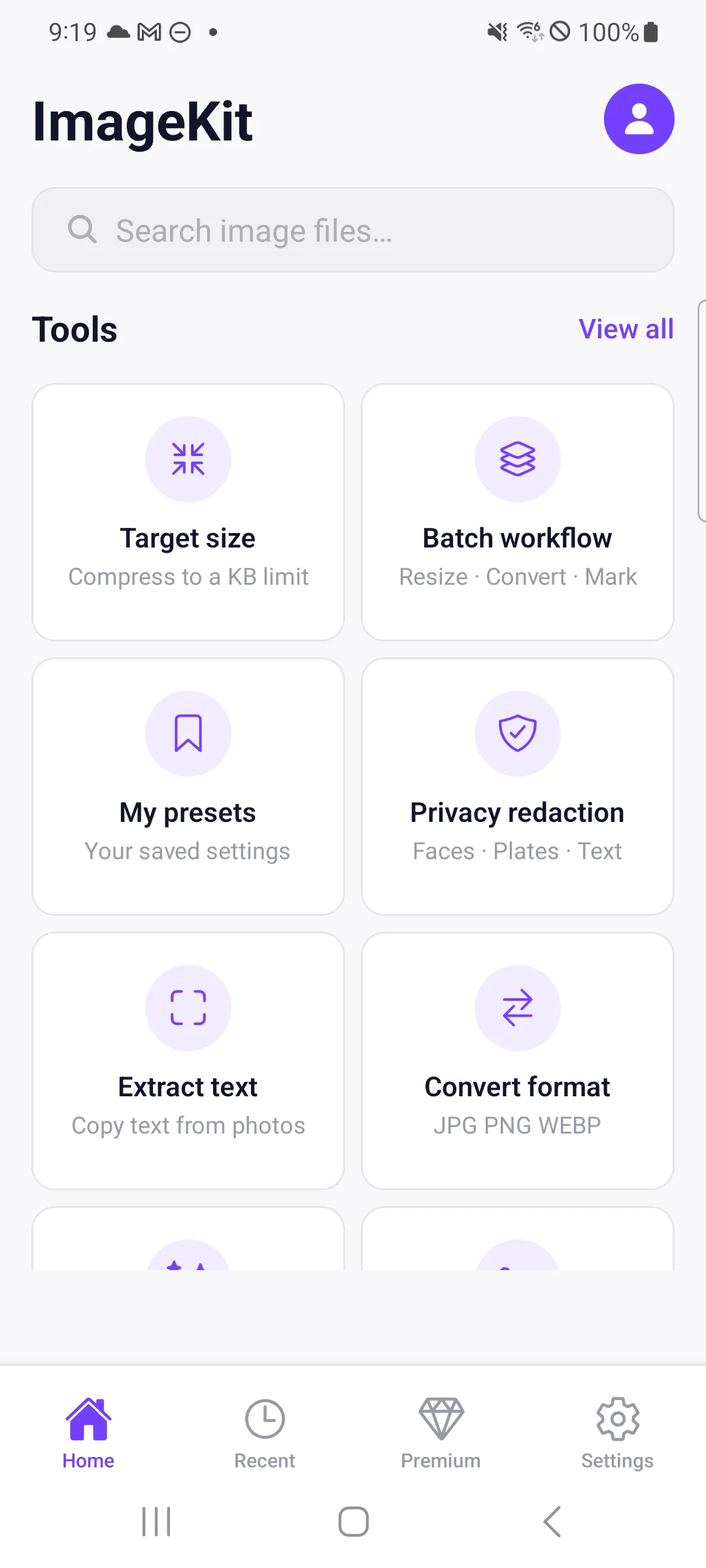
Convert JPG, PNG and WEBP, compress images, crop and rotate, apply filters, convert PDFs, remove EXIF metadata, convert GIF and MP4, upscale with AI and remove backgrounds. Supported formats and access conditions vary by tool.
Seven additions in the prepared update
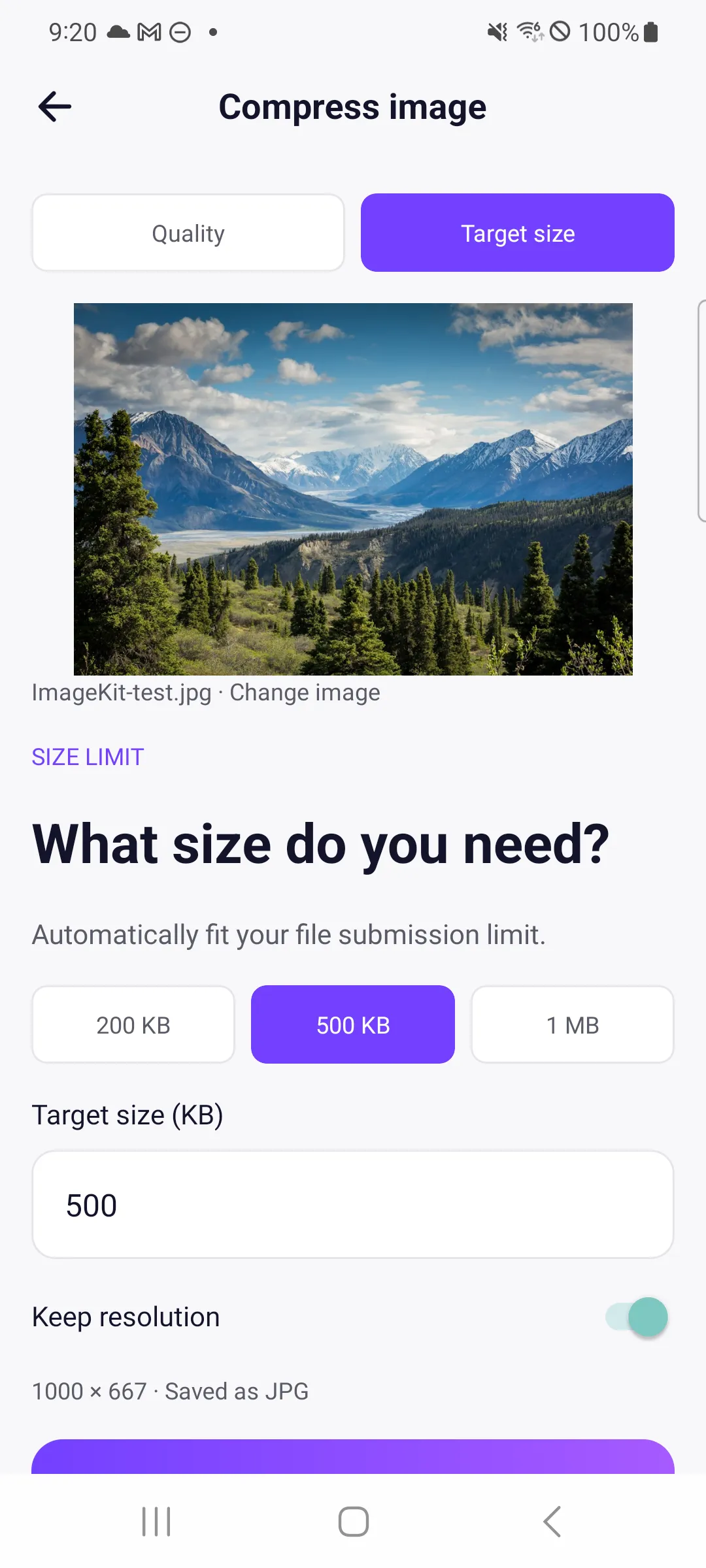
- Target-size compression — choose a KB limit and compress as far as the image allows.
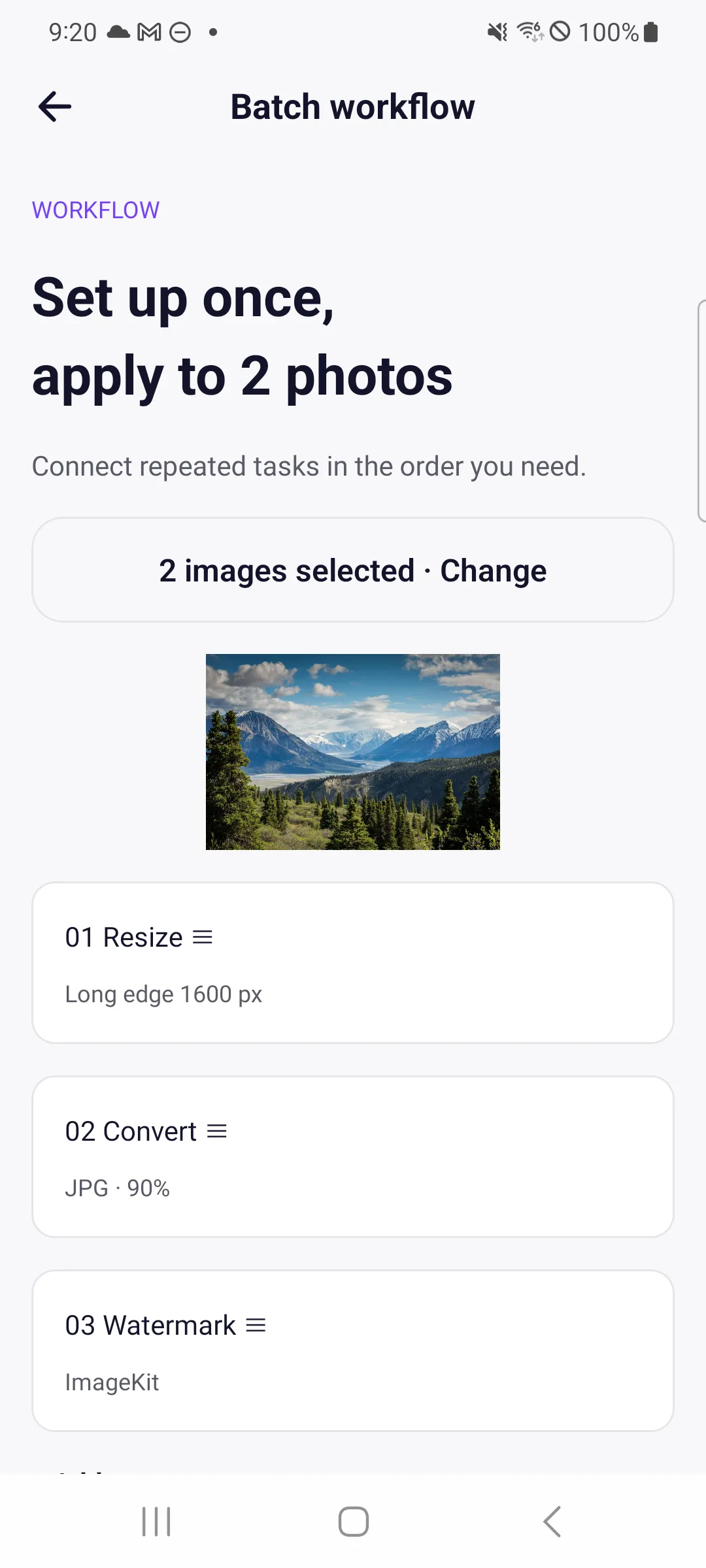
- Batch workflows — apply resizing, conversion and watermarking in sequence.
- My presets — save settings and apply them again.
- Original comparison — inspect results with a slider or stacked views.
- Privacy redaction — select faces, text and other regions to cover. Check the output before sharing.
- Text extraction — choose Korean, Japanese or English recognition, then edit, copy or share the result.
- Start from another app — send images through the share menu and choose your next task.
Read the ImageKit Privacy Policy for account data, image processing, ads, payments and deletion requests.
How to use
Choose your images
Pick from your gallery or files, or share images to ImageKit from another app.
Choose your tools
Set a file-size target, output format or editing options, then start processing.
Check and save
Compare with the original, save to your gallery or share to another app.
Frequently asked questions
- Is it free?
- Free features include ads. Some features and ad removal require a premium purchase. Google Play shows the current price before payment.
- Do all photos stay on my device?
- No. Standard editing, compression, OCR and redaction run on your device, but AI upscaling and background removal may use external cloud services. See the privacy policy for details.
- Which languages are supported?
- The app supports Korean, Japanese and English. It defaults to Korean for the Korea device region, Japanese for Japan, and English elsewhere. You can override this in Settings.
- Why can’t I see a feature shown here?
- The seven new features and multilingual screenshots on this page describe the prepared update. Availability depends on the Google Play rollout and your installed version.
